
Show AI what happened.
Teach it what to do next.
Sidekick records real workflows on your Mac: clicks, narration, screenshots, video, and browser context. Then it turns them into structured prompts, feedback requests, and reusable skills for Claude, Codex, and Gemini.
▸ sidekick record capturing screen, clicks, narration, app + URL context…
├── process.md structured workflow draft
├── events.jsonl full event timeline
├── context.json app, window & browser context
├── video/walkthrough.mov + screenshots/
├── narration/transcript.txt on-device transcription
└── out/SKILL.md → installed to ~/.claude/skills/
✓ Handoff ready · open in claude · codex · gemini
Your AI assistant is missing the actual work.
Most AI workflows fail before the model ever starts. The problem isn’t always the AI; it’s the context. You know how the work is done, but describing it in enough detail for an agent to repeat it, improve it, or safely change it is the hard part.
A screen recording alone isn’t enough. AI tools need text, file paths, timestamps, and structured evidence, not just pixels.
Manual prompts lose the details. Edge cases, decisions, and the “why” behind each click get skipped when you write from memory.
A folder of screenshots isn’t enough. Without ordering, narration, and context, the evidence doesn’t tell a story an agent can act on.
Multi-step workflows get flattened into one vague request, losing phases, dependencies, and what success looks like.
Record. Generate. Hand off. Reuse.
Sidekick captures the work while it happens and packages it into the exact files your AI tools need.
Choose a capture mode
Record a workflow, record with narration, or capture feedback. Hit record from the app, the menu bar, or ⌥⌘R, then just do the work naturally.
Sidekick captures everything
Screen video, clicks, keystrokes, app switches, window titles, browser URLs, narration, and annotated click screenshots, all assembled into a clean event timeline.
events.jsonlArtifacts generate instantly
Stop recording and Sidekick finalizes the video, transcribes narration on-device, aligns evidence to timestamps, and writes structured Markdown + JSON.
process.md · request.mdReview the draft
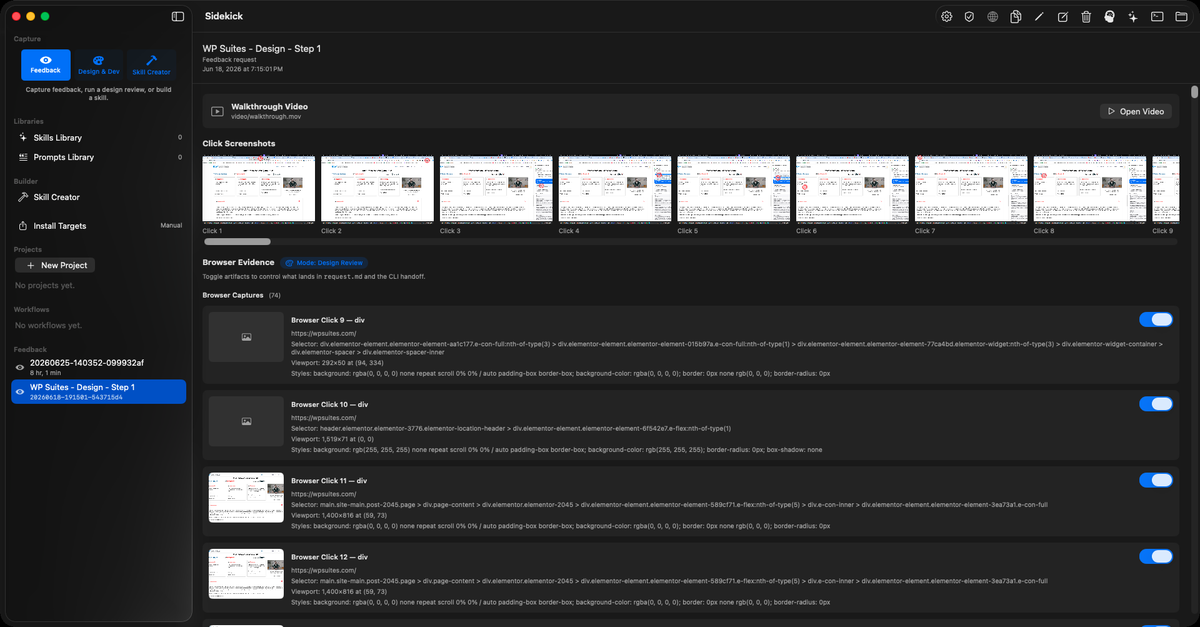
Workflow recordings open as a process draft. Feedback walkthroughs become prompt-ready change requests with embedded click screenshots and transcript snippets.
human-in-the-loopHand off to your AI
Start a Claude or Gemini interview, open a feedback request in Codex, copy the prompt, or reveal the local folder. Your tools, your CLI, your choice.
claude · codex · geminiSave the reusable skill
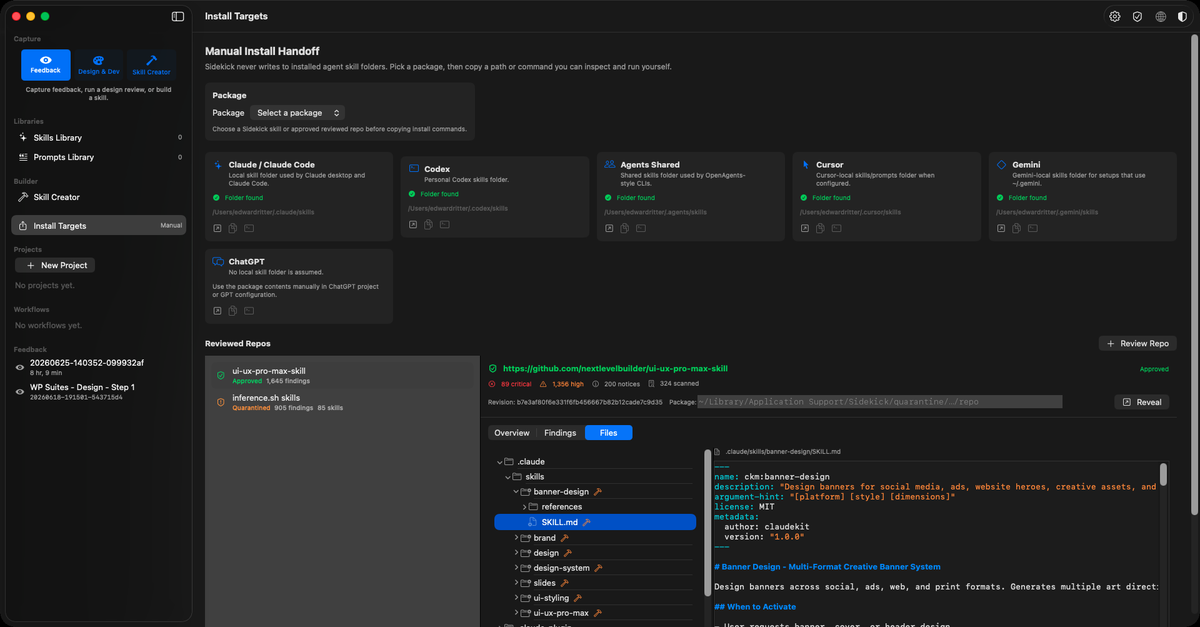
When the interview produces a SKILL.md, Sidekick previews it and installs it to your Claude skills folder. Work captured once, reused forever.
One app. Every capture mode.
Record, Narrate, and Feedback, one click away, with your skills, prompts, projects, and feedback requests organized in a single local workspace.
Everything between “I know how this is done”
and “an AI agent can do this reliably.”
Workflow Recording
Record real processes through ScreenCaptureKit. Sidekick captures clicks, keys, app switches, focused windows, and best-effort browser URLs, then generates a structured process.md draft from the event log.
Record + Narration
Talk while you work. Voice notes are saved locally and transcribed with Apple’s on-device Speech framework, so the AI hears why a step matters, what varies, and what success looks like, in your own words.
Capture Feedback
Walk through any app or site, narrate what should change, click what matters. Sidekick generates a prompt-ready request.md with annotated click screenshots, aligned transcript, video, and JSON context.
Projects & Dependencies
Break large workflows into ordered steps, each with its own recording, status, and dependencies. Sidekick generates a project.md with a readiness checklist and skill-structure guidance.
AI Interviews & Handoffs
One click opens a Terminal handoff with your process doc preloaded. Claude or Gemini interviews you about triggers, edge cases, and judgment calls. Feedback requests open directly in Claude, Codex, or Gemini.
One-Click Skill Install
When an interview produces SKILL.md, Sidekick detects it, previews it, infers the name from frontmatter, and installs it to ~/.claude/skills/, instantly reusable in Claude Code.
Chrome Browser Companion
The bundled Chrome extension enriches feedback clicks with selectors, bounds, visible text, curated styles, DOM context, and optional console/network evidence, straight from your real Chrome profile.
Web Pins
Pin elements in the WebKit companion to capture cropped screenshots, selectors, outer HTML, computed styles, console events, and navigation history as structured browser evidence.
Privacy-Aware Capture
Keystrokes in secure fields are detected via macOS Accessibility and redacted automatically. Browser evidence is capped and sanitized. Everything stays in local session folders until you share it.
Your recordings never leave your Mac unless you say so.
- No automatic uploads. Sessions live in local folders. You decide when a prompt, file, or folder is shared with an AI tool.
- On-device transcription. Voice notes are transcribed with Apple’s Speech framework, so no audio leaves the machine.
- Secure-field redaction. Password fields are detected through Accessibility and keystrokes are redacted before they’re ever written down.
- Local CLI handoffs. Sidekick opens your own Claude, Codex, or Gemini CLI, and it never proxies your work through a remote API.
macOS Permissions: what & why
| Permission | Why | Status |
|---|---|---|
| Screen Recordingwalkthrough video + screenshots | walkthrough video + screenshots | Required |
| Accessibilitywindow titles, URLs, secure-field detection | window titles, URLs, secure-field detection | Required |
| Input Monitoringclicks & key presses | clicks & key presses | Required |
| Microphonenarration & voice notes | narration & voice notes | Optional |
| Speech Recognitionon-device transcription | on-device transcription | Optional |
Installed in under two minutes.
The app is signed and notarized by Apple, with no security warnings and no terminal workarounds. Install the Mac app first, then add the Chrome helper for enriched browser feedback.
The Mac App
Sidekick-mac-v0.6.1.dmg · macOS 14+
- Download and open the
.dmgusing the button below. - Drag
Sidekick.appinto your Applications folder with Finder before the first launch. This keeps the Chrome helper registration working correctly. - Open Sidekick. It launches clean, because the build is notarized by Apple, so there are no Gatekeeper warnings to click through.
- Grant the three permissions when prompted: Screen Recording, Accessibility, and Input Monitoring. Add Microphone + Speech Recognition if you’ll use narration.
- Quit and reopen Sidekick once after granting Screen Recording or Input Monitoring; macOS requires a relaunch before capture starts working.
c2a772bd4f5258f7c8923412529b735d0b23beb2fd870078aed9e182c644cd52shasum -a 256 -c.The Chrome Helper
Chrome Web Store · one-click install
- Open the Chrome Web Store listing with the button below, then click Add to Chrome and confirm.
- The extension updates itself automatically, so there’s no
chrome://extensions, Developer mode, or “Load unpacked” to manage. - Launch (or relaunch) Sidekick. It registers the Chrome helper automatically at startup, with no IDs to copy and nothing to paste.
- Start a Capture Feedback session, open the extension’s side panel, and confirm it shows Ready to capture.
Built for the people doing the real work.
Founders & Operators
Capture how you actually do the work before delegating it to a person, or an AI agent.
Agencies & Consultants
Turn client processes into structured playbooks, reusable skills, and better implementation prompts.
Product Teams
Record real product feedback with screenshots, narration, and developer-ready context.
Designers
Show what needs to change visually without writing a long technical spec from scratch.
Developers & AI Builders
Feed Codex, Claude, or Gemini evidence-rich requests instead of brittle one-line prompts.
Teams Adopting Agents
Convert messy human workflows into repeatable, inspectable, human-approved AI workflows.
The roadmap: from capture tool to skill infrastructure.
Skill Library & Multi-Tool Sync
A local vault for every skill you generate or import, with tags, collections, conflict detection, and sync to Claude, Codex, Cursor, Gemini, and custom folders. Record once, sync everywhere you work.
Full Chrome Companion Flow
Deeper browser capture from your real Chrome profile: section selection, DOM/CSS/selector evidence, console and network-failure capture, and viewport context, with safe payload limits and redaction built in.
GitHub Skill Publishing
Publish reviewed skills to GitHub repositories so your team can share, version, and distribute the workflows you’ve captured.
AI Roundtable
Import plans from Claude, Codex, Gemini, or other agents, compare consensus and conflicts, then generate synthesis prompts and a final plan. Multi-agent planning, made structured.
Frequently asked
Is Sidekick an AI model?
No. Sidekick is the capture and handoff layer. It records workflows, generates local context files, and opens handoffs to tools you already use: Claude, Codex, and Gemini.
Does Sidekick upload my recordings?
No automatic upload is built into the core workflow. Recordings and generated files are stored locally on your Mac. You choose when to send a prompt or folder to an AI tool.
What’s the difference between Record and Capture Feedback?
Record is for capturing a repeatable workflow and turning it into a process draft or skill. Capture Feedback is for explaining a desired UI or code change, and it produces a prompt-ready request with screenshots, narration, video, and structured context.
Why not just use a screen recorder?
A screen recorder creates a video. Sidekick creates an AI-ready evidence bundle: event logs, Markdown drafts, annotated screenshots, narration transcripts, structured JSON context, and CLI handoff scripts: the things agents can actually inspect and act on.
Does Sidekick redact sensitive input?
Yes. Keystrokes are redacted when macOS Accessibility identifies a secure text field, and browser evidence uses conservative redaction patterns and payload caps. You should still review generated files before sharing them.
What AI tools does Sidekick work with?
Current handoffs include Claude and Gemini interviews for workflows and projects, plus Claude, Gemini, and Codex handoffs for feedback requests. Generated skills install into Claude’s skills folder today; multi-tool sync is on the roadmap.
Can Sidekick automate the workflow for me?
Sidekick’s current role is to capture, document, interview, and generate reusable AI instructions that other tools act on. Fully automated execution is a later product direction; today it keeps a human in the loop by design.
Record the work once.
Let your AI tools actually help.
Download Sidekick, capture your first workflow, and watch it become a reusable skill.